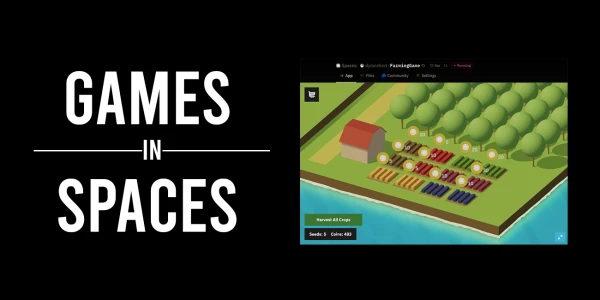
Did you know you can host a Unity game in a Hugging Face Space? Yes, you can! While Spaces are typically used for machine learning demos, they also support playable Unity games. Here's a step-by-step guide to get your game online.
Step 1: Create a Space using the Static HTML template
Go to Hugging Face Spaces and create a new Space. Choose the "Static HTML" template, give your Space a name, and click create.
Step 2: Clone the Space with Git
Clone your Space to your local machine:
git clone https://huggingface.co/spaces/{your-username}/{your-space-name}
Step 3: Open your Unity Project
Open the Unity project you want to host.
Step 4: Switch Build Target to WebGL
Go to File > Build Settings and select WebGL as the target platform.
Step 5: Open Player Settings
In Build Settings, click "Player Settings" to open the configuration panel.
Step 6: (Optional) Download the Hugging Face WebGL Template
Enhance your game's appearance with the Hugging Face Unity WebGL template. Download it and drop it into your project. Then, in Player Settings under "Resolution and Presentation", select the Hugging Face WebGL template.
Step 7: Disable Compression
In Player Settings, under "Publishing Settings", set Compression Format to "Disabled".
Step 8: Build Your Project
Back in Build Settings, click "Build" and choose a location for the build files.
Step 9: Copy Build Files to Repository
Copy the contents of the build folder to the cloned Space repository.
Step 10: Enable Git-LFS for Large Files
In the repository directory, run:
git lfs install
git lfs track Build/*
Step 11: Push Your Changes
Commit and push your files:
git add .
git commit -m "Add Unity WebGL build files"
git push
Done!
Refresh your Space, and your game should be playable. For questions or to join the community, check the Hugging Face Discord.